
By Mirelo Team |
Mirelo makes it easy to generate foley from a video file: upload your footage to Mirelo Studio, generate sound effects in Magic Mode, and preview the result against the picture. The video is the input, so you do not have to describe every visible action in a prompt or place each effect by hand.
Mirelo generates sound effects for on-screen action and scene detail, including impacts, movement, and ambience. The generated audio follows the timing of the footage. You can listen in the editor and change anything that does not fit before exporting.
Studio runs in the browser and is free to start. Mirelo SFX is also available through editor plugins and the developer API when your workflow calls for them.
Generate synced foley in Mirelo Studio by uploading a video, generating sound effects in Magic Mode, reviewing the audio with the picture, and refining the result where needed.
Open Mirelo Studio and create a project from your video file. The footage becomes the reference for the sound effects and their timing.
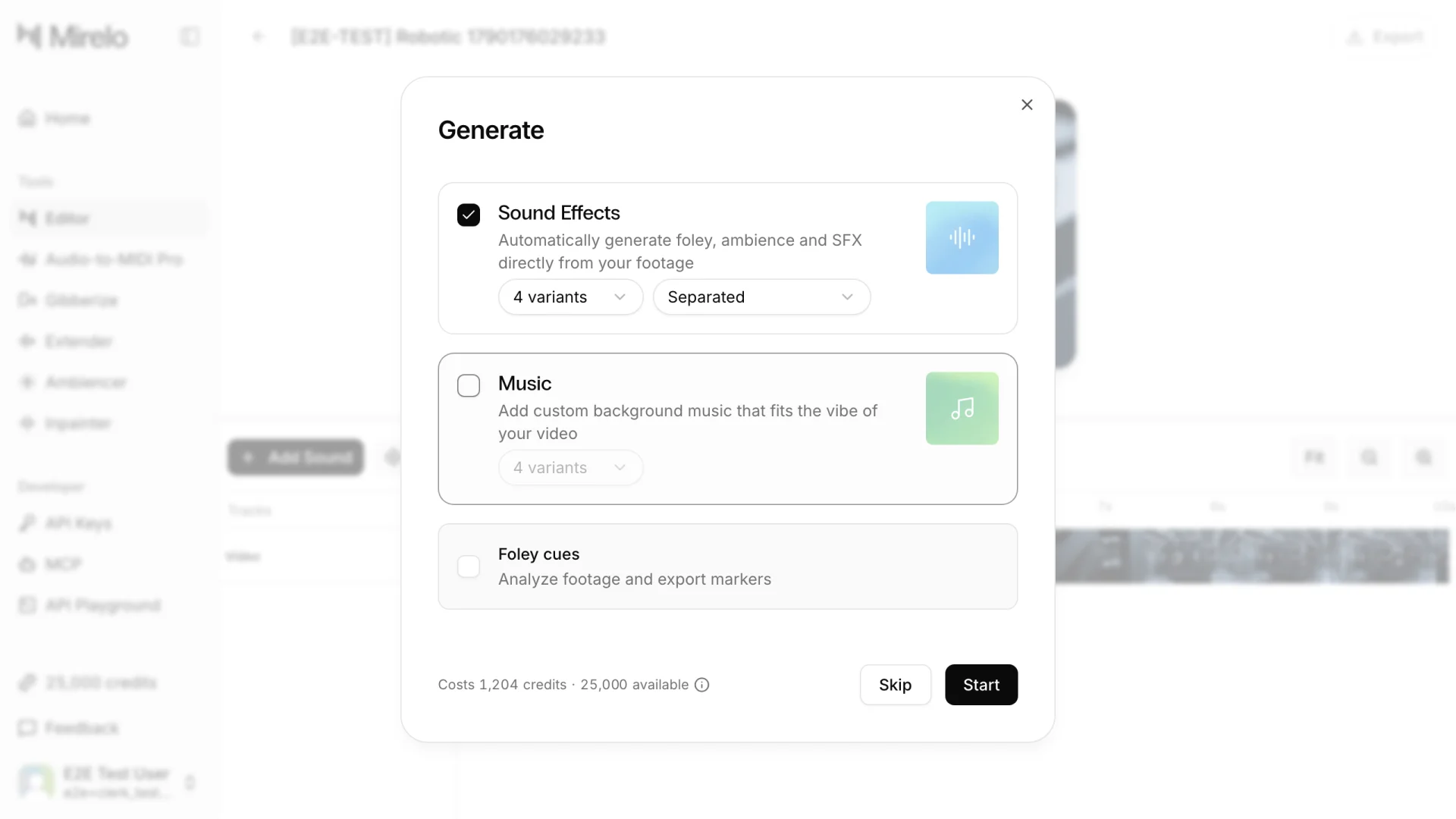
When the video loads, Magic Mode opens. Select Sound Effects and press Start. Mirelo analyzes the video and generates audio for the visible actions and scene. Magic Mode is available for videos under 10 minutes. For longer videos, or when you want to direct the sound design yourself, press Skip and add sound effects from the timeline.
The separate Foley cues option analyzes the footage and exports markers for your editor. It does not generate audio.
Play the video in the editor and listen for how each sound lands against the action. Check the timing, the balance between foreground effects and ambience, and whether the sound fits the scene.
If a sound needs work, use the editor to revise it. You can generate another take or use Mirelo's editing tools to extend audio, loop ambience, or replace a selected region. When the result is ready, export it for your video workflow.
Mirelo's video-to-sound workflow starts with the footage itself. A text-only sound generator starts with your written description; you then decide where its output belongs in the edit. With Mirelo, the model uses the visual action as context and generates audio timed to the picture. You still review the result and make creative choices in the editor.
For more on the model and its editing tools, see Mirelo SFX.
How to convert an MP3 or WAV into editable MIDI, MusicXML and sheet music, and rebuild it in your DAW
Turn a complete mix into editable MIDI, scores, and printable sheet music with Audio-to-MIDI Pro in Mirelo Studio.